
Electronic Communication Service (eComms) User Manual
Document text
1. Account validation (First connection)
eComms is a service initiated by the Court for communicating electronically. You will receive an email from the Court with a link to validate your ECHR Services account and connect for the first time.
- Go to your email inbox and click on the link provided in the ECHR Services account validation email to connect for the first time (no image)
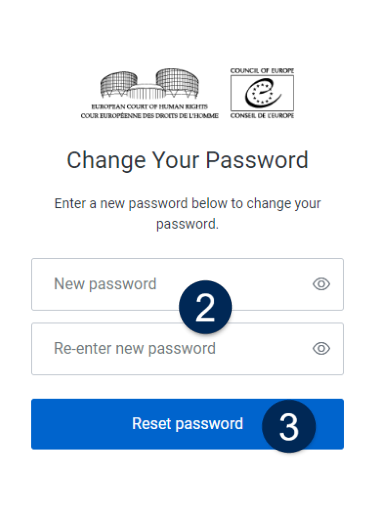
- Enter a password and repeat password
- Click on Reset password You will be redirected to eComms

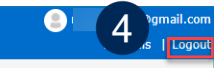
- Click Logout if you want to end your session


Did you know?
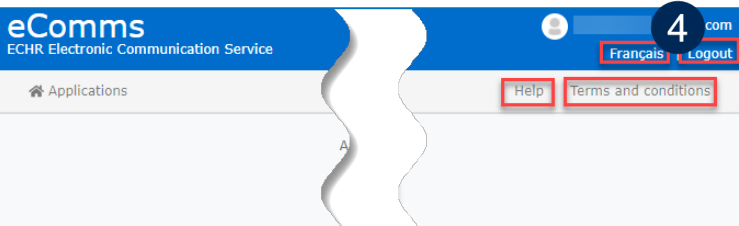
At the top right of the page you can find:
- The Help function
- The Terms and Conditions
- Switch to the French interface by clicking Français
- Strasbourg local time is displayed for your information.
By typing your password and repeating it you allow the system to check if the password is entered correctly.
Please check your spam or junk email folder if you cannot find the Court’s email because sometimes even legitimate emails are redirected to the spam/junk email folder.
2. Connecting to eComms (Login)
You will receive an email from the Court with a link to access your ECHR Services account once it has been set up, a new application has been added, or a new document has been sent.
You have received an email from the Court that an application has been added to your list of applications in eComms or a new document is now available in eComms
- Click on the link in the email (no image)
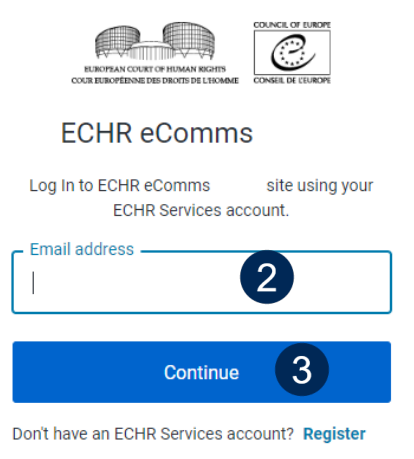
- Enter your Account identifier (= email address)
- Click on Continue

- Enter your password
- Click on Continue

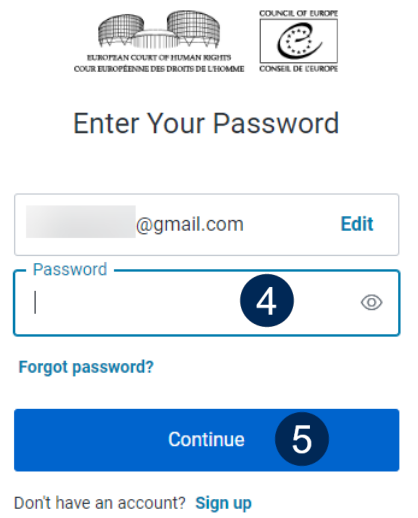
Did you know?
You can also access eComms directly via this link https://ecomms.echr.coe.int
Your account identifier is your email address.
You can reset your password by clicking on Forgot password? and follow the steps as described in Chapter 5.
3. Receiving a document from the Court
When you receive a document from the Court you will be notified by email.
You have received an email from the Court that a new document is now available
- Click on the link in your email to connect to eComms and follow the steps as described in Chapter 2 (no image)
- Click and select the application in question from your list of applications
- Click on the new document in the Inbox tab The document will open in a PDF reader


- Save the document to your local system (no image) You can now read or print it

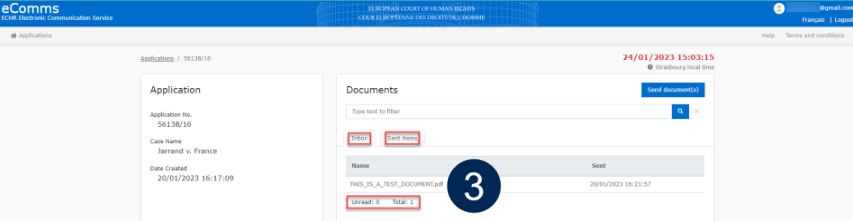
Please note that, once electronic communication has been initiated, all subsequent correspondence will be by e-transmission only. You will not receive original letters or any annexes by regular post. Similarly, you do not need to send originals of your correspondence by regular post unless asked to do so by the Court.
Did you know?
Electronic communication is only possible when initiated by the Court.
Documents received from the Court can be found in the Inbox tab. Documents sent to the Court can be found in Sent items.
Please note that changing your email address for eComms will delete the content of your eComms folders. It is your responsibility to download and save your documents to your own local system.
4. Sending a document to the Court
You can send a pdf document concerning a specific application provided that this application is listed in your ECHR Services account.
- Connect to eComms (no image)
- Select the application in question from your list of applications. Please note that you can only send documents concerning the selected application!
- Click Send document(s)


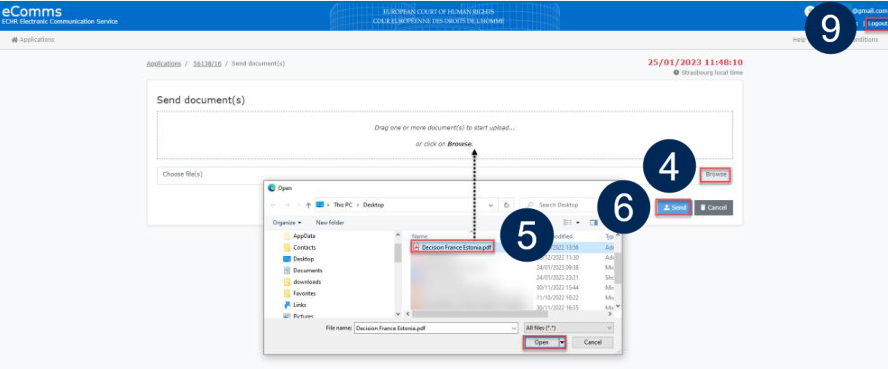
- Browse your local system for your pdf document to be sent to the Court
- You have 3 options to upload your document: Double-click or click open or drag and drop, then wait until it has been fully uploaded
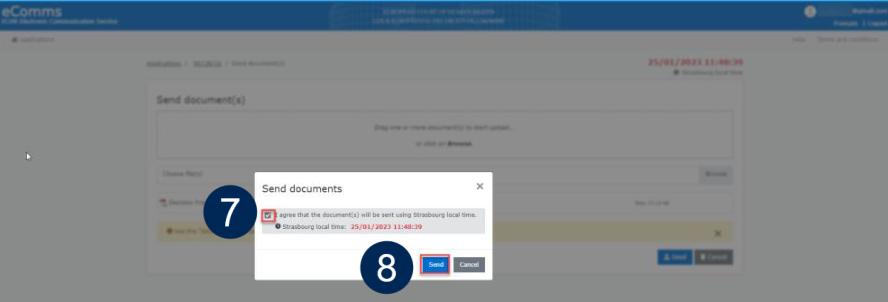
- Click Send after the document has been uploaded
- Confirm by ticking the box and
- Hit the Send button A confirmation message will be displayed
- Log out if you want to end your session



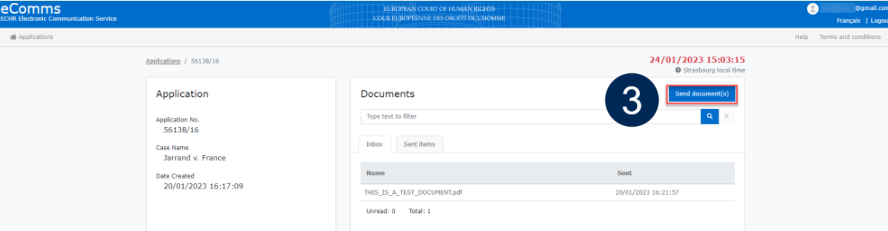
Did you know?
Documents will be time stamped with the local Strasbourg time when they are sent to the Court. This allows monitoring time-limits.
Documents from the Court can be found in the Inbox tab. Documents sent to the Court can be found under Sent items.
The Upload status bar shows if your document is still being processed. Once this is completed, you can continue with step 6.
See also!
5. Resetting your password
You can reset your password at any time.
- Connect to eComms (no image)
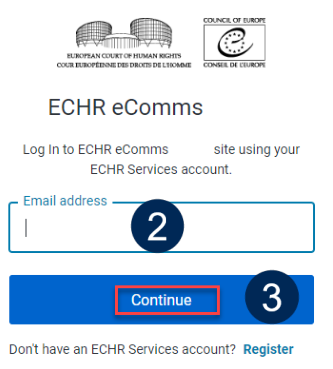
- Enter your email
- Click on Continue
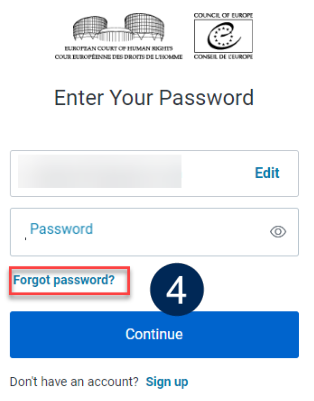
- Click on Forgot password?
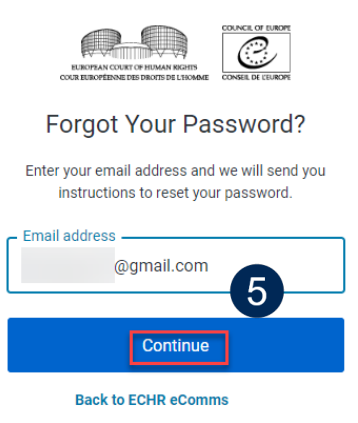
- Enter and submit your email address by clicking on Continue An account recovery message will be displayed and you will receive an email. This might take a few minutes (no image)


- Click on the link in the email to reset your password (no image)
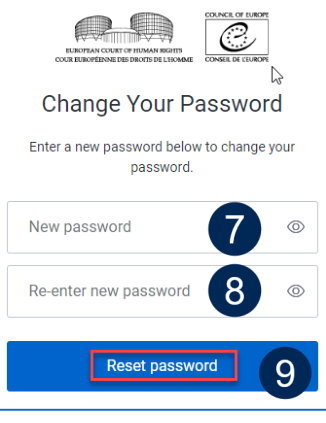
- Enter your new password
- Repeat your new password
- Click on Reset password A message will be displayed confirming the password change


Did you know?
Please note that you can only reset the password for an existing ECHR Services account.
If you change the password of your email account connected to your existing ECHR Services account, your document list will not be affected. If you change your email address, however, your document list will not be transferred.
6. Contacting the Helpdesk
In the case of any technical issue with the eComms portal, you can contact our IT Helpdesk to report any issues and access the manual.
- Connect to eComms (no image). See Chapter 2
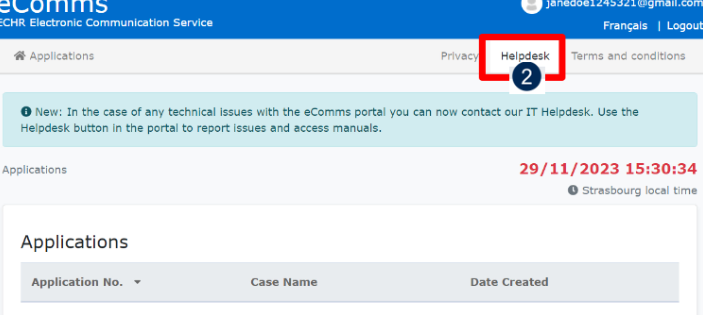
- Click on Helpdesk on the top right of the page

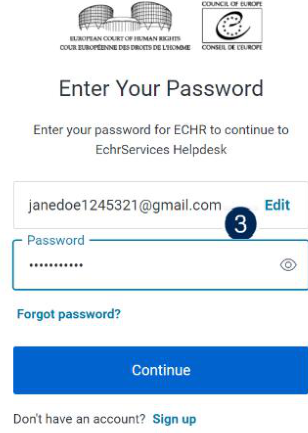
- Connect to the ECHR Services IT Helpdesk using your eComms email and password

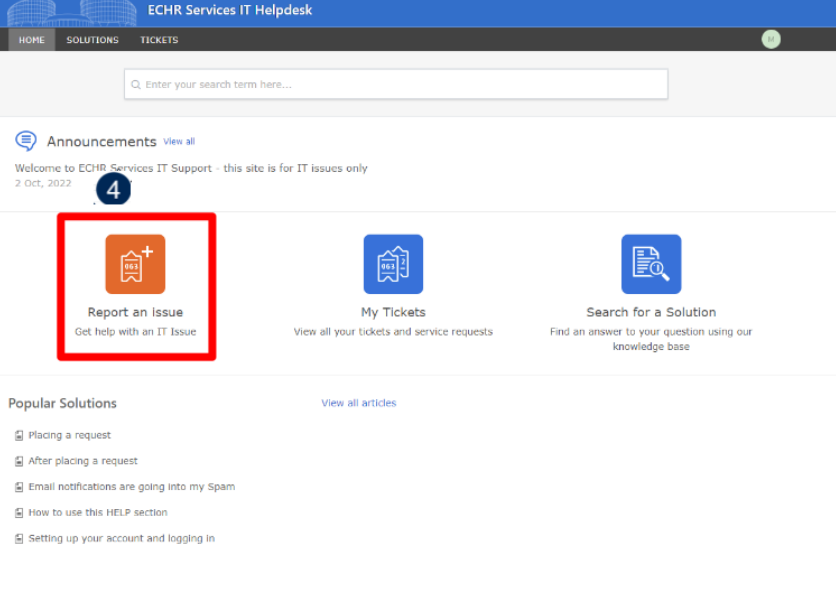
- Click on Report an Issue in the ECHR Services IT Helpdesk to contact our IT Helpdesk

7. FAQ – Frequently Asked Questions
What type of documents can I send?
You can only send pdf files of a maximum of 50MB.
What happens if my pdf file is not sent immediately due to a technical problem but I have to respect a time-limit?
Each document is time-stamped in order to identify when it was sent indicating Strasbourg local time.
If you cannot access eComms or if receiving or sending documents fails, if possible, please try to access the site from another computer.
What should you do in case of a technical problem?
In case of difficulty and if the documents must be sent urgently (e.g. to comply with time limits), then they should be sent by fax (+33 (0)3 88 41 27 30).
What is the best dpi resolution for scanning?
We recommend to scan in 300 dpi, not higher.
Can I send documents in Rule 39 cases?
eComms should not be used for Rule 39 correspondence prior to communication of the case.
Can I send multiple documents concerning a same application via my ECHR Services account?
Yes, you can send multiple documents per application provided the application is listed in your ECHR Services account. To send documents, you must select a specific application from your list of applications. The documents you send must concern this application only. Please note that if you send one or more documents which do not concern the selected application, any such document(s) will not be accepted by the Court.
In order to add multiple documents, you can select a consecutive group of files: Locate your files, click the first item, press and hold down the Shift key, and then click the last item. To select non-consecutive files, press and hold down the Ctrl key, and then click each item that you want to select. Then click Open and wait until the upload of all selected files is completed. Alternatively, you may drag and drop your selected files. Continue with step 7 in Chapter 4.
Can I have more than one active ECHR Services account?
To avoid confusion, we recommend, where possible, to have only one active ECHR Services account containing all your applications. However, if necessary, you can have several active ECHR Services accounts if you have provided the Court with different email addresses. Please note that you can only send a document or a batch of documents in an application linked to the ECHR Services account.
Do I need to name documents in a certain way?
A file name should be composed of characters drawn from the ASCII Character set (i.e. characters from the Cyrillic character set or other extended character sets should not be used), please see: https://en.wikipedia.org/wiki/Extended_ASCII.
Please note that the Court will ensure that the document names are prefixed with the application number (e.g. 123-16 but not 123/16) The documents will automatically be prefixed with the application number and the document type will be defined when they send a document.
Who can I ask to launch eComms for me?
eComms is a service initiated by the Court for communicating electronically.
How long are files kept in my ECHR Services account?
Documents sent via eComms are only available for one year. Once a case is finished at the Court all documents will be deleted from the eComms folder for the finished case.
It is the user’s responsibility to download and save the documents the Court sends via eComms to their own local system before this one-year limit.
If you change your email address, the contents of your previous account will not be transferred to your new ECHR Services account connected to the new email address. Please secure your documents in that case.
Is there a direct link which I can use to connect to my account or do I have to use the link in the email sent by the Court?
Yes, you can use the direct link https://ecomms.echr.coe.int and add it to your favorites. Please note that you can only send files related to applications available in your account.
Which internet browsers can I use for eComms?
Please see the terms and conditions on the top right of the eComms web page for a full list of recommended browsers.
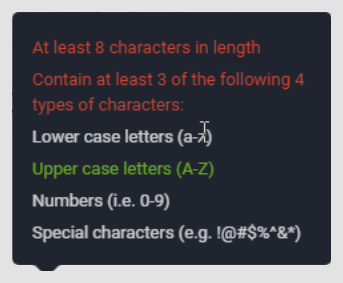
I tried to initiate my password but it does not appear to be accepted?
Please bear in mind that there are minimum requirements for a password:
Is it possible to have multiple email addresses (ECHR Services accounts) per account?
No. You can only have one ECHR Services account (email address) per account.
I am unable to upload documents. After clicking on Send, the page freezes.
If you are unable to send documents, please try to disable your browsers extensions. Alternatively you can browse in private mode which is a fast and safe way to surf. In case of difficulty and if the documents must be sent urgently (e.g. to comply with time limits), then they should be sent by fax (+33 (0)3 88 41 27 30).